



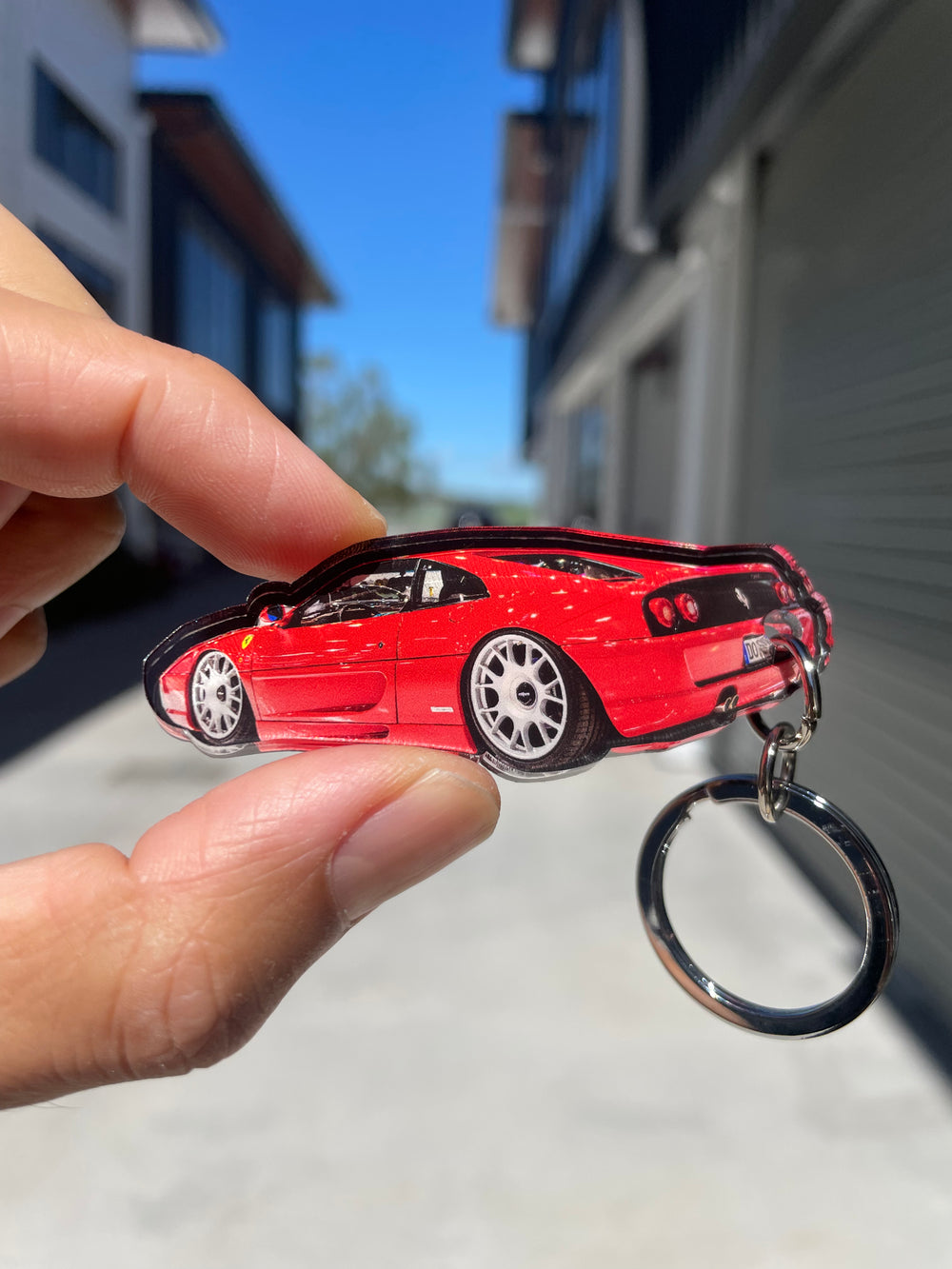
Locator Help Guide
Bluetooth Locator Setup Guide
Getting Started
Before You Begin
- Ensure your iPhone or iPad is running the latest version of iOS or iPadOS.
- Enable Bluetooth on your device.
- Make sure the Apple Find My app is installed.
- Remove any battery isolation tab from the Locator (if fitted).
Step 1 – Turn On Your Locator
- Press and hold the Locator button until you hear a beep.
- The Locator is now powered on and ready to pair.
Step 2 – Add the Locator to Apple Find My
Open the Find My App
- Open the Find My app on your iPhone or iPad.
- Select the Items tab.
- Tap Add Item.
- Select Other Supported Item.
Connect Your Locator
- Bring the Locator close to your phone.
- Wait for the Locator to appear on screen.
- Tap Connect.
- Enter a name for your Locator (e.g. Keys, Wallet, Backpack).
- Select an emoji if desired.
- Tap Continue.
- Confirm adding the Locator to your Apple ID.
- Tap Finish.
Your Locator is now ready to use.
Using Your Locator
Find Your Item
If the item is nearby:
- Open the Find My app.
- Select your Locator.
- Tap Play Sound.
- Follow the sound to locate your item.
If the item is further away:
- Open the Find My app.
- Select your Locator.
- View its last known location on the map.
Notifications
The Find My app can notify you when:
- You leave your item behind.
- Your Locator is detected in a different location.
- The Locator is found again after being lost.
To enable notifications:
- Open Find My.
- Select your Locator.
- Configure your notification preferences.
Share Your Locator
You can share your Locator with family or friends.
- Open Find My.
- Select your Locator.
- Tap Share Item.
- Choose the people you wish to share access with.
Requirements:
- iOS 17 or later
- iPadOS 17 or later
- macOS Sonoma or later
Replacing the Battery
- Open the Locator cover.
- Remove the old battery.
- Insert a new CR2032 battery.
- Ensure the battery polarity (+/-) is correct.
- Close the cover securely.
Troubleshooting
Location Not Updating
If your item's location has not updated:
- Ensure Bluetooth is enabled.
- Make sure Find My is enabled.
- Check that the battery is not depleted.
- Move to an area with better network coverage.
- Restart the Locator and reconnect it.
Please note:
Apple's Find My network relies on nearby Apple devices to anonymously update item locations. If no Apple devices pass near your Locator, location updates may be delayed.
Safety Information
- Keep batteries away from children.
- Do not recharge CR2032 batteries.
- Do not expose batteries to excessive heat.
- Do not disassemble or puncture batteries.
- Dispose of used batteries according to local regulations.
- Only use CR2032 replacement batteries.
- Remove the battery if storing the Locator for an extended period.
Specifications
- Compatible with Apple Find My Network
- Battery Type: CR2032
- Battery Voltage: 3V
- Bluetooth Low Energy (BLE)
- Supports Find My notifications and item sharing